School Smart ERP Operating Manual
Everything your office does in a school day — admissions, attendance, examinations, fees, accounts, payroll and the messages home — and how to do each of them in this system. Written for the people who use it, not for the people who built it.
01 About this system
School Smart ERP runs the administrative side of a school: the register, the fee counter, the ledger, the payslips and the messages that go home. One record of each child, one set of books, one place every member of staff works from.
It runs in a web browser, so there is nothing to install on an office machine beyond the browser already there. Staff reach it at the school's own address; parents and students reach a portal of their own; and there is a phone app for parents. Every campus the school runs appears in the same system, with figures kept apart per campus and combined where a school owner needs the whole picture.
What it is not
It is not a teaching platform and does not attempt to replace a classroom. Homework and results are published through it, but the teaching happens elsewhere.
Who sees what
Nothing in this system is open to everyone. Each person signs in as themselves and sees only what their role allows, and that is enforced on every page rather than only hidden from the menu. A class teacher opening another section's attendance is refused; an accountant opening payroll without the right is refused.
| Role | Typically does |
|---|---|
| Super Admin | Everything, across every campus. Creates users, sets rights, holds the keys. |
| Principal | The whole campus: admissions, academics, results, reports, approvals. |
| Accountant | Fees, receipts, expenses, the ledger, payroll, owner payments. |
| Class teacher | Their own sections: attendance, marks, homework, complaints from their parents. |
| Receptionist | Inquiries, visitors, front-desk certificates, fee collection where allowed. |
| Parent | Their own children only: attendance, results, challans, notices, complaints. |
| Student | Their own record: attendance, results, homework, notices. |
Roles are a starting point, not a cage. Every right is separate and can be granted or withdrawn one at a time under Administration › Roles & Permissions, so a school that wants its receptionist to take fees but not to issue concessions can have exactly that.
02 Getting started
Signing in
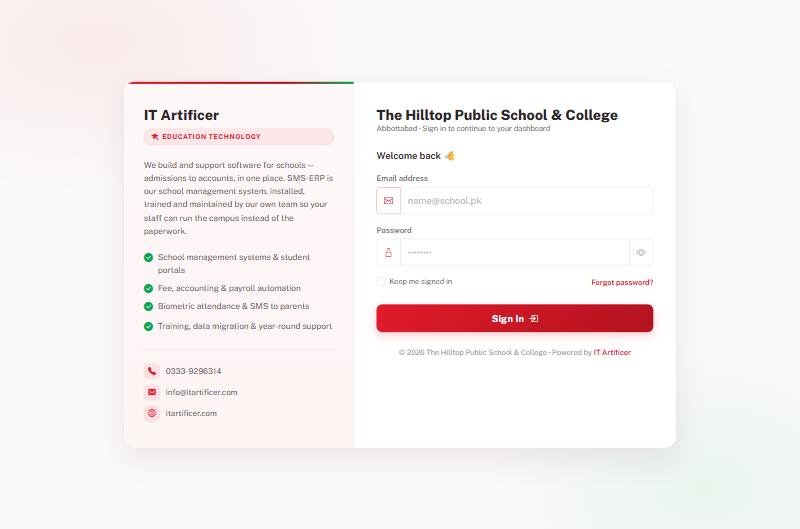
Open the school's address in a browser. Each member of staff has their own email and password — accounts are never shared, because every entry in the system records who made it.
Finding your way
Three things sit on every page. The sidebar on the left lists every module you are allowed to open. The top menu groups the same things by area — Students, Academics, Finance, Services, Reports, Administration. The search box at the top finds a student or a family from anywhere: type a name, an admission number or a mobile number.
A school with more than one campus also gets a campus selector beside the search box. Everything on screen then belongs to the campus chosen there; choose All Branches to see the group as a whole.
Before the first school day
- Set the campus details: name, address, phone, logo and the bank accounts printed on a fee slip, under Administration › Branches.
- Create the academic session and mark it current.
- Enter classes and their sections, and name a class teacher for each section.
- Enter subjects and attach them to classes.
- Enter fee heads and the amount each class pays, under Fee Management.
- Add staff accounts and give each the role they need.
- Admit students, or import them from a spreadsheet.
03 The dashboard
The first screen after signing in answers the questions a principal asks before anything else: what came in today, what is owed, who is here.
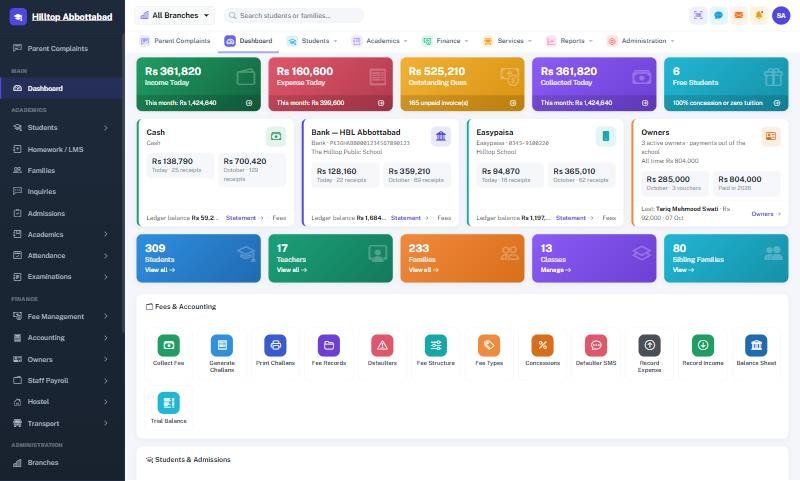
The coloured tiles across the top cover income, expense, outstanding dues, collection and the count of students on full concession. Under them sits one card per account — cash in hand, each bank account, each mobile wallet — showing today's receipts and the month's, with a link straight to that account's statement.
Every tile is a door. Clicking Outstanding Dues opens the defaulters list; clicking Students opens the student register. Lower down the page are quick actions for the things an office does many times a day: collect a fee, generate challans, print challans, mark attendance.
04 Students & families
A child belongs to a family, and the family is what the system bills. Brothers and sisters share one family record, one family code and one challan where the school wants it that way.
Adding a student
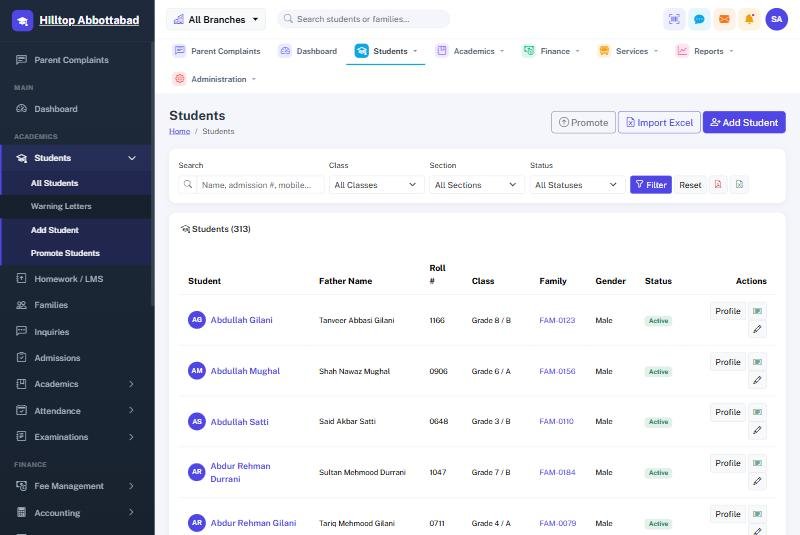
Students › Add Student takes the child's details, the family they belong to (new or existing), the class and section, and the admission date. The admission number is issued automatically. Attach the photograph and any documents — the B-Form, the previous school's leaving certificate — and they stay on the record.
Importing a whole school
A school moving from paper or from another system should not type three hundred children in by hand. Students › Import Excel takes a spreadsheet; download the template first so the columns match, fill it, and upload. Families are matched or created as the import runs.
Through the year
- Promote moves a class up at year end, in bulk, with the leavers excluded.
- Status marks a child left, struck off or passed out, with the reason recorded.
- Warning letters are issued from the student's own page and printed on the school's letterhead.
- Create login gives the parent or the student their portal account.
A child who has left should be marked Left, never deleted. Their fee history, receipts and results belong in the school's books, and a deleted record takes all of it with them. Marking them left removes them from registers and billing while keeping the history intact.
05 Inquiries & admissions
A parent who walks in or telephones is recorded as an Inquiry: who called, about which class, and what was said. The inquiry is then followed up and either converts to an admission or is closed, so the school can see how many of the people who asked actually came.
An Admission Application carries the child's details, the entry test date and marks where the school tests, and a status — pending, approved, waiting or rejected. An approved application is enrolled with one action, which creates the student and the family without re-typing anything.
The Admissions Report shows new admissions over any period, and the inquiry funnel beside it.
06 Attendance
Marking
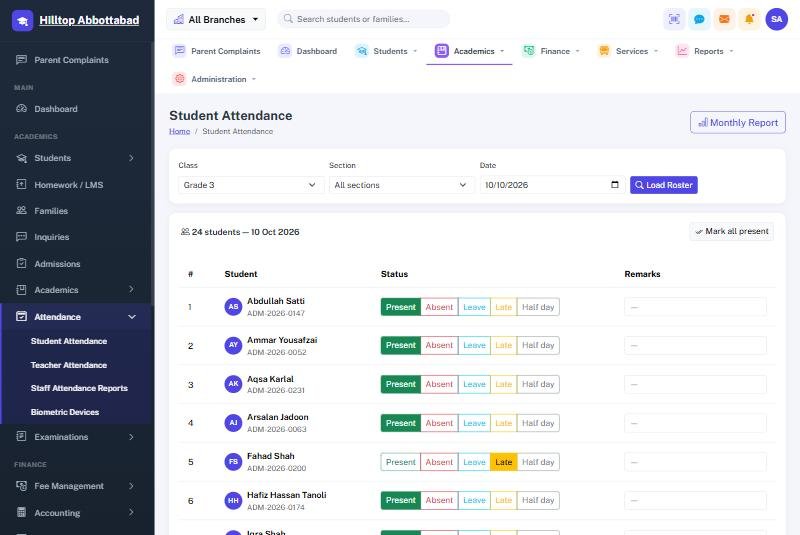
Attendance › Student Attendance, choose the class and the date, and press Load Roster. Each child takes one of five states: present, absent, leave, late or half day. Most days the quickest route is Mark all present and then change the handful who are not. Remarks can be added against any child.
Staff attendance works the same way under Teacher Attendance, and feeds the payroll deduction at month end.
Reports
The Monthly Report gives a class's whole month on one sheet, ready to print. Staff Attendance Reports covers the staff side with five views — a daily sheet, a register, a summary, a late-arrivals list and one person's record — each printable and exportable.
Once the register is marked, the SMS to absentees' parents can go out on its own at a set time each morning. Nobody has to remember. See SMS & notices.
07 Biometric terminals
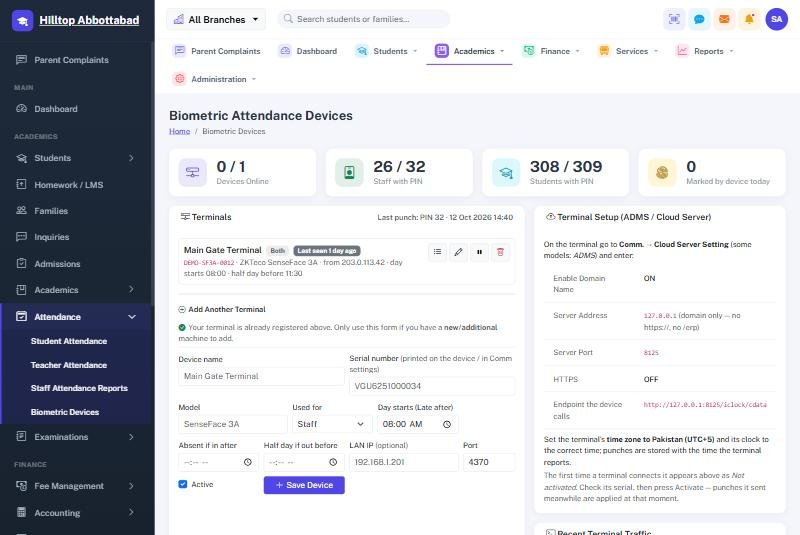
A ZKTeco terminal at the gate can mark attendance without anybody touching a keyboard. Punches arrive at the system by themselves as staff and students clock in.
Connecting a terminal
- On the device, open Comm. › Cloud Server Setting (some models call it ADMS).
- Enter the server address and port exactly as this screen shows them. Leave HTTPS off unless told otherwise.
- Set the device's time zone to Pakistan and check its clock. A wrong clock produces wrong arrival times.
- The first time it connects, the terminal appears here as Not activated. Check the serial number against the sticker on the device, then press Activate.
How punches become attendance
Every punch is kept exactly as the device sent it. The system then works out each person's day from those punches: the earliest is the arrival, the latest the departure, and the day's status follows the late and half-day times set against that terminal.
A device never overwrites a day a human has marked. If the office recorded leave for a teacher who then touched the scanner on their way past, the leave stands.
08 Examinations
Running an exam
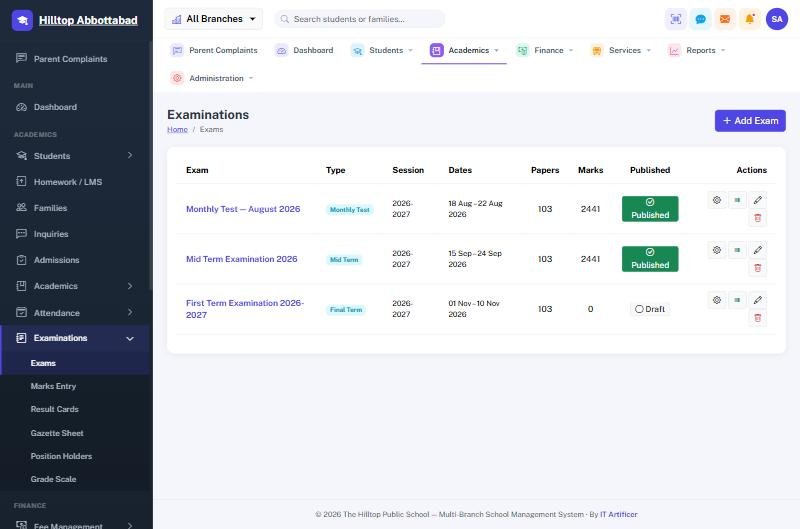
- Add Exam — name it, choose the type and the dates.
- Set the papers: which subject for which class, total marks, passing marks, date, time and room.
- Marks Entry — one class and subject at a time; absentees are marked rather than left blank.
- Check the Gazette Sheet for the whole class on one page.
- Publish when the result is final. Only then do parents and students see it.
What comes out
- Result cards per student, on the school's letterhead, printable in bulk.
- Gazette sheet — every student against every subject.
- Position holders — the merit list per class.
- Grade scale — the bands and grade points, set once under Examinations.
An unpublished exam is invisible outside the staff room. Enter marks at your own pace; nothing reaches a parent until somebody presses Publish.
09 Homework & LMS
A teacher posts homework, notes or a reading against a class and subject, with a due date and an attachment where needed. Parents and students see it in their portal and in the app, and students can submit work back where the teacher asks for it.
The Yearly Plan sits alongside it: what each class covers in each month of the session, so a parent can see where the class should be and a principal can see whether it is.
10 Fee management
The part of the system the office uses most. Fee heads say what is charged, the structure says how much per class, challans bill it, and receipts collect it — each receipt posting itself to the ledger as it is taken.
Setting the fees up
- Fee Types — the heads: tuition, admission, examination, computer lab, sports, transport, hostel.
- Fee Structure — the amount each class pays under each head.
- Concessions — a reduction for one child, as a percentage or an amount, on one head or on everything.
- Sibling Discounts — a rule that applies itself to the second and later children of a family.
- Payment Methods — the cash, bank and wallet accounts you collect into, with the account numbers printed on the slip.
Billing the month
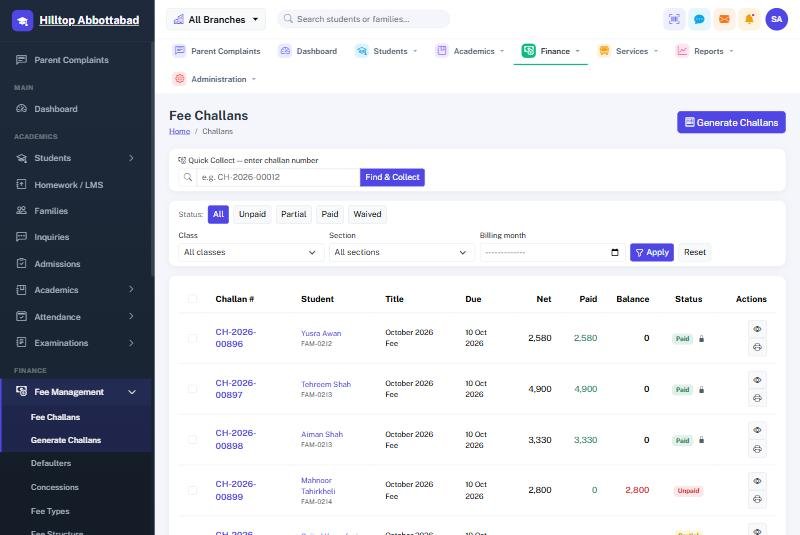
Generate Challans raises the month's bills for a class or for the whole school in one action, applying every concession and sibling rule as it goes. Challans print one to a page or several to a sheet, and carry a barcode so the counter can scan rather than type.
Taking a payment
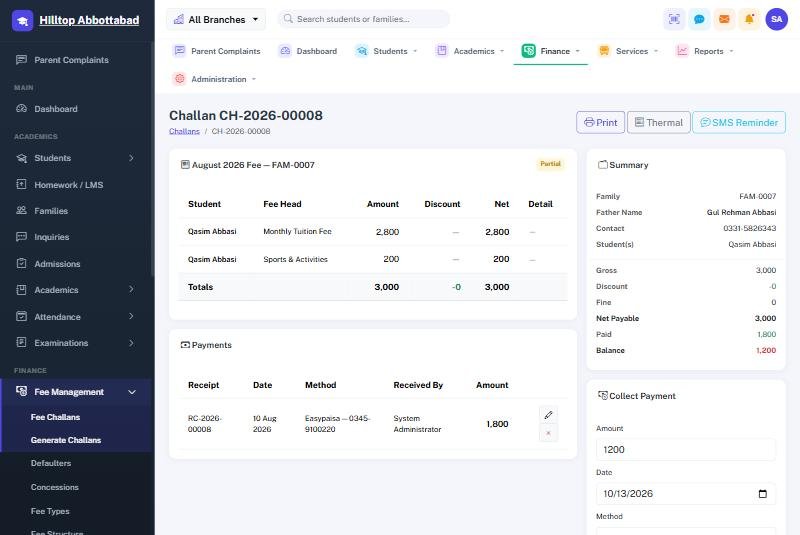
- Scan or type the challan number into Quick Collect, or find the child by name.
- Enter the amount — part payment is allowed and the balance stays on the challan.
- Choose how it was paid: cash, a bank account or a wallet.
- Save. The receipt number is issued, the receipt prints, and the ledger entry is posted.
Chasing what is owed
Defaulters lists every family with an overdue balance, oldest first, and can send the whole list a reminder by SMS in one action. The Fee Collection report shows what came in over any period, by method and by class.
11 Working offline
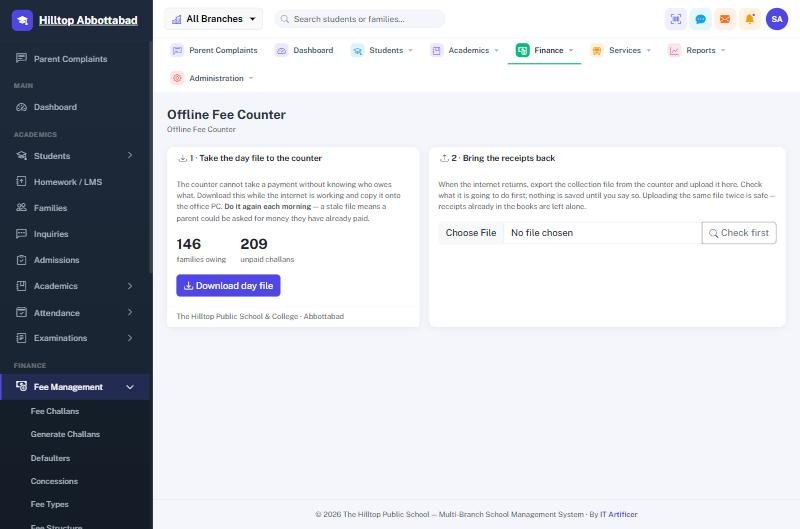
A school on a weak line should not have to turn parents away from the fee counter. The Offline Fee Counter is a small till that runs on a PC in the office and keeps taking fees while the internet is down.
What it does, and what it does not
It takes payments and prints receipts. Nothing else. Attendance, marks and admissions wait for the main system and are entered afterwards. That is a deliberate limit: fee collection is the one thing that cannot wait, because a parent is standing at the window with cash in hand.
Setting it up, once
- Install XAMPP on an office PC that stays switched on during school hours, and copy the
offline-counterfolder into it. - Give that PC a fixed address on the school network so it never moves.
- Open it in a browser, load the first day file, and set a passcode.
- Bookmark it on every office machine, labelled plainly — School Fees — offline.
Every morning
From Fee Management › Offline Fee Counter, press Download day file and load it on the counter. The file carries every unpaid challan with its balance, the fee heads behind it, the payment methods and the school's own branding, so the slip the counter prints is the slip parents already know.
The counter can only see challans that were unpaid when the day file was made. A file several days old risks a parent being asked for money they have already paid. The counter shows the file's age and warns once it passes a day.
When the line goes down
Nothing to switch on. Open the bookmark, find the challan by number, admission number,
family code, name or mobile, take the money and print. Receipts issued offline carry the
counter's own code — RC-L1-2026-00001 — so they can never collide with a
number the main system issues at the same time.
When the line comes back
- On the counter, Send to school › Download collection file.
- On the main system, upload it and press Check first. Nothing is saved yet.
- Read what it is going to do, then confirm. The receipts post to the ledger dated when they were actually taken.
- Load a fresh day file on the counter so it matches the school again.
Uploading twice is safe. Every receipt carries its own identifier, so a second upload of the same file changes nothing — which matters, because re-uploading is the first thing anyone does when an upload looks like it failed.
An edited file is refused. The collection file is checksummed; if a figure has been altered since the counter wrote it, the system will not accept it.
Overpayments are shown, not swallowed. If a challan was settled on the main system while the counter was offline, that receipt is listed for the office to look at rather than posted quietly.
Do not run two counters from the same day file. Both would issue the same receipt numbers. One office PC, one till.
12 Accounting
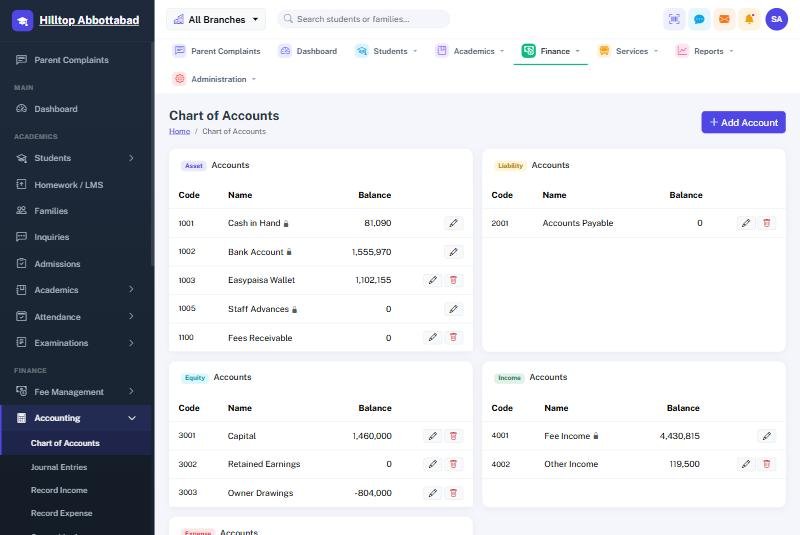
A full set of books, kept by the system as the office works. Nobody has to post a fee receipt by hand — taking the money is what writes the entry.
What posts itself
- A fee receipt — debit the account it was paid into, credit fee income.
- A payroll run marked paid — debit salaries, credit the account it went out of.
- An owner withdrawal — debit owner drawings, credit cash or bank.
What you post by hand
Record Expense for anything the school spends — electricity, rent, repairs, stationery. Record Income for money from outside the fee system. Journal Entries for anything else, with both sides stated.
The books themselves
General Ledger, Cash Book, Bank Book, Trial Balance, Profit & Loss and Balance Sheet, each over any period you choose and each printable.
Removing a fee receipt does not erase its ledger entry; it reverses it. The books keep the full history of what happened, which is what makes them worth keeping.
13 Payroll
Setting salaries
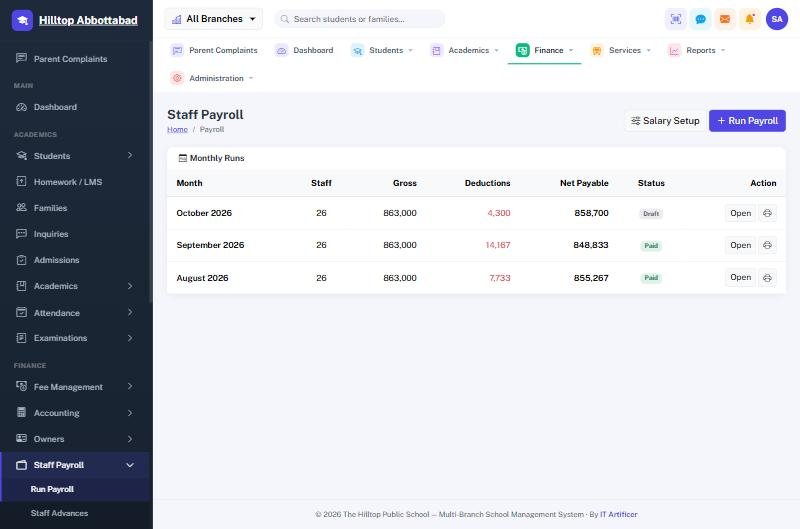
Salary Setup holds each member of staff's package: the basic and the allowances that make it up, effective from a date. Changing a salary adds a new package from the date it applies, so past payslips keep the figures they were paid on.
Running the month
- Run Payroll for the month. The system builds a payslip per member of staff from their package.
- Absence deductions come from the staff attendance already marked, on a thirty-day basis.
- Add anything else by hand — a bonus, a fine, an advance recovery.
- Approve, then Mark paid when the money leaves. That is what posts it to the ledger.
- Print payslips individually or for everyone.
Advances
A loan to a member of staff is recorded under Staff Advances with its recovery plan, and each month's instalment is deducted from the payslip until it is cleared.
Once a run is marked paid its payslips keep their figures for good, even if a salary is changed afterwards. A payslip has to match what was actually handed over.
14 Owners
Most private schools in Pakistan have two or three owners who draw money from the school through the year. Owners records each of them, the capital they put in and every payment the accountant hands out, with a voucher number and a printable voucher.
Each payment posts to the ledger — a withdrawal against owner drawings, an investment against capital — so the school's books show the owners' position properly rather than as an unexplained gap in the cash.
15 Hostel
Hostels, rooms and their capacity; which student is in which bed; nightly roll call; gate passes for a boarder leaving and returning; and complaints raised by boarders with their resolution. The hostel fee attaches itself to the student's challan like any other head, so a boarder is billed without anybody remembering to add it.
16 Transport
Routes and their stops, vehicles and drivers, and which student boards where. As with the hostel, the transport fee for a child's stop attaches itself to their challan automatically.
17 SMS & notices
What goes out on its own
| Message | To | When |
|---|---|---|
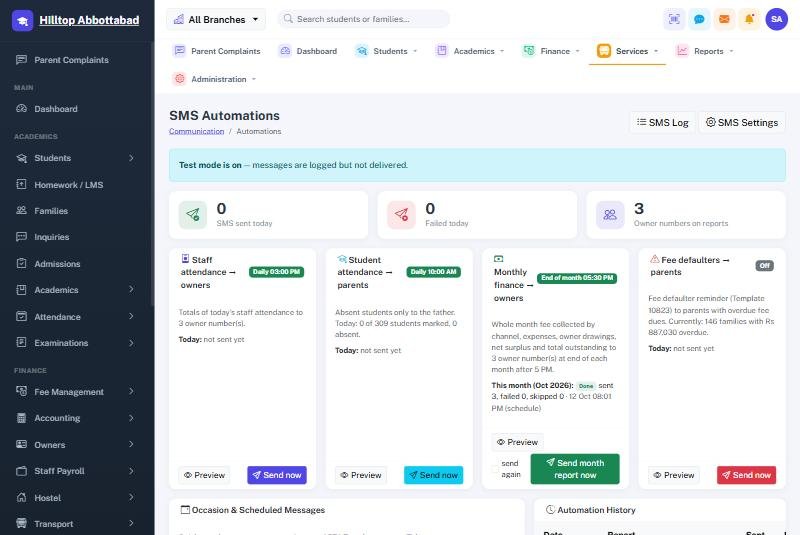
| Student absent today | Parents of absentees | Each morning, after the register |
| Staff attendance summary | Owners | Each afternoon |
| Monthly finance report | Owners | Last day of the month |
| Fee defaulter reminder | Parents in arrears | Daily, where switched on |
Each can be previewed before it is switched on, sent immediately with Send now, and reviewed afterwards in the SMS log. Occasion messages cover the rest — a holiday announcement, a parents' meeting, Eid greetings — to a whole class, a whole school or a chosen list, now or at a set time.
While test mode is on, every message is written to the log and none is delivered. It is the right way to check the wording and the recipient list before a school's credit is spent. Turn it off when you are ready to send for real.
Notices
A notice is written once and aimed at an audience — everyone, parents, students, teachers or staff. It then appears on the right people's dashboards and portals, and in the app. A future date keeps it hidden until the day it should appear.
18 Parent complaints
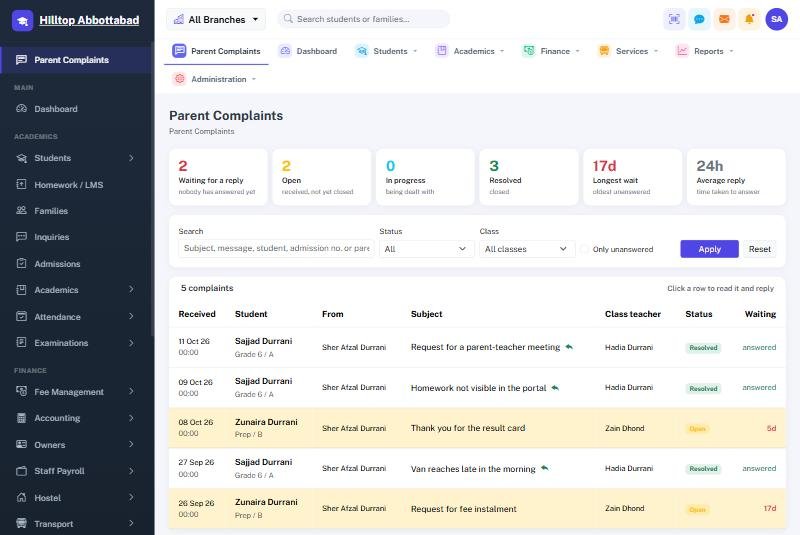
A parent raises a complaint from their portal or the app, against one of their children. It reaches that child's class teacher and the school administration, and the reply appears back in the parent's portal.
For the office, the screen opens with the figures that matter — how many are waiting for a reply, how long the oldest has been waiting, the average time taken to answer — and then lists every complaint one to a row. Rows left unanswered for three days or more are tinted. Click a row to read it in full and reply without leaving the list. Filter by status, by class, by free text, or show only the unanswered.
A parent can record a voice note instead of typing — useful for anyone more comfortable speaking, in any language — and the school can reply by voice too. No typed message is required either way. Recordings are private: they are never published, and only the family who sent them and the staff responsible for that child can play them.
19 Front desk
Visitors records who came, who they came to see, and when they left, and prints a visitor pass. Certificates issues the documents a school is forever being asked for — school leaving, character, bonafide — on the school's own letterhead, from templates kept under Administration.
20 Parent & student portals
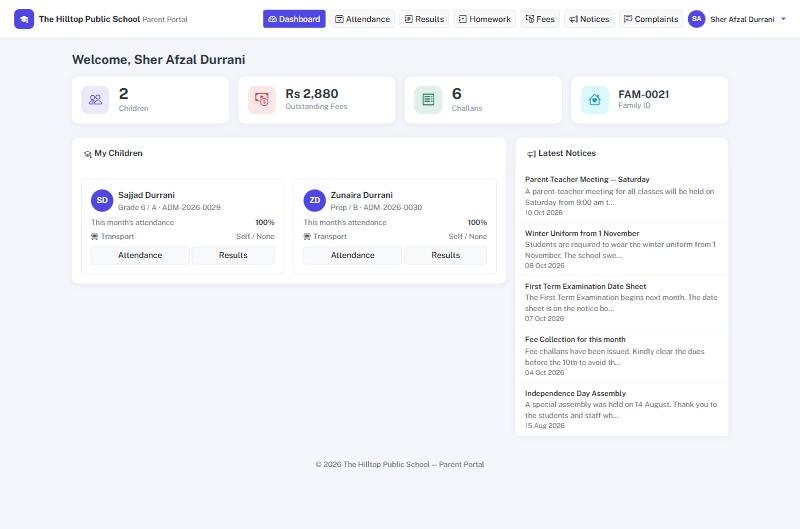
A parent with more than one child at the school signs in once and sees them all. For each child: attendance by month, results once published, homework, and the family's challans with what is paid and what is owed. Notices meant for parents appear here, and complaints are raised and answered here.
The student portal is the same thing from the child's side: their own attendance, results, homework and notices.
Accounts are created by the school — from a family's page or a student's page — never by the parent. The office keeps control of who gets access.
21 Mobile apps
The same information in a parent's pocket. The app signs in against the school's own system and carries that school's name, badge and colour — a parent opens their school, not a generic application.
| Platform | Status | How it is delivered |
|---|---|---|
| Android | Available | Installed from a file the school shares, or from Google Play once the school's listing is live. |
| iOS (iPhone / iPad) | In development | Built from the same code; released through the App Store when review is complete. Parents on iPhone should use the portal in Safari meanwhile. |
What a parent can do in the app
- See each child's attendance for the month, and the day's status.
- Read results once the school publishes them, subject by subject.
- See challans, what is paid, what is owed, and the breakdown of a bill.
- Read the school's notices.
- Raise a complaint and read the school's reply.
- Switch between children where a family has more than one at the school.
What staff can do in the app
- Look a student up and see their profile and fee position.
- Take a fee payment at the counter or at a school event.
- Mark a class register from a phone.
- See the day's collection and the school's headline figures.
Installing on Android
- The school shares the app file, or a link to it.
- Open it on the phone. Android will ask once for permission to install from that source — allow it.
- Open the app and sign in with the email and password the school issued.
Each school's app is built against that school's own address, so a parent only ever sees their own school's data. The look follows the colour set on the campus record, so no new version is needed to brand it.
22 Reports
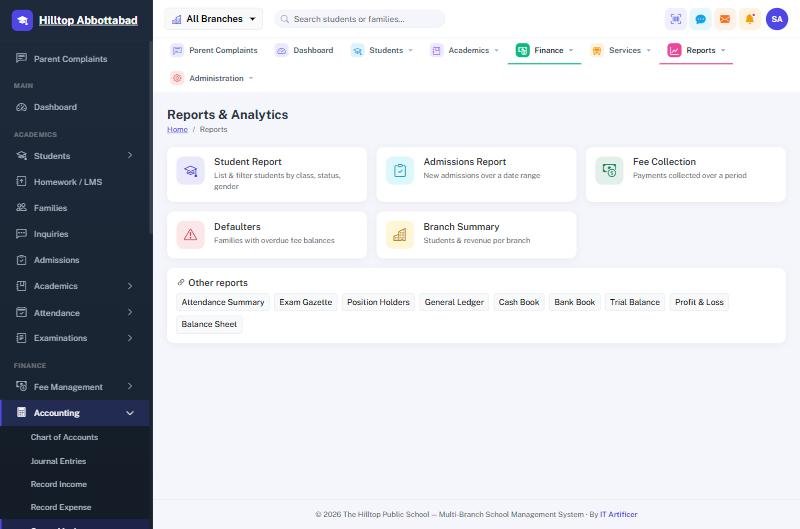
| Report | Answers |
|---|---|
| Student Report | Who is on the roll, by class, status and gender. |
| Admissions Report | How many joined over a period, and from which inquiries. |
| Fee Collection | What came in over a period, by method and by class. |
| Defaulters | Which families are behind, and by how much. |
| Branch Summary | Students and revenue per campus, for a group of schools. |
| Attendance Summary | A class's month on one sheet. |
| Exam Gazette & Position Holders | Results across a class, and the merit list. |
| Ledger, Cash & Bank Book | The books, over any period. |
| Trial Balance, P&L, Balance Sheet | Whether the school is ahead, and by how much. |
Every report prints on the school's letterhead and can be exported.
23 Administration
Branches
Each campus carries its own name, address, telephone, logo, watermark, the accounts printed on its fee slips, the notice at the foot of a challan, and the colour its mobile app wears. Printouts take all of this from here, so a change made once appears on every document.
Users, roles and rights
Add a member of staff, give them a role, and limit them to one campus or several. Rights are individual and can be tuned per role. A member of staff who leaves should be marked inactive rather than deleted, so the entries they made keep their name.
Activity log
Who changed what, and when. The first place to look when a figure is not what somebody expected.
Backups
A copy of the whole database, taken on a schedule and downloadable at any time. Keep a copy somewhere other than the server.
Offline working
Where a school runs the offline counter, this screen gives that school its site code — the letters that appear inside every receipt number the counter issues, keeping its numbering apart from the main system's for good.
24 Document numbering
Every document the system issues carries a number that is never reused, so a receipt can always be traced back.
| Document | Looks like |
|---|---|
| Fee challan | CH-2026-00925 |
| Fee receipt | RC-2026-00779 |
| Receipt from the offline counter | RC-L1-2026-00001 |
| Journal voucher | JV-2026-00816 |
| Payslip | PS-2026-00079 |
| Owner payment voucher | OP-2026-00013 |
| Staff advance | ADV-2026-00005 |
| Admission number | ADM-2026-0313 |
| Family code | FAM-0233 |
The letters after the prefix on an offline receipt are the counter's site code. That is the whole reason two places can issue receipts at once without ever clashing.
25 Support
Before you call
- A page says you have no permission. Your role does not include that right. A Super Admin can grant it.
- A parent cannot sign in. Check the account exists on the family's page and that it is active.
- A result is not visible to parents. The exam has not been published.
- A challan is missing a transport or hostel fee. The child is not attached to a route or a room.
- The biometric device shows offline. Check the device's network settings against the Biometric Devices screen, and its clock.
- Messages are not arriving. Check test mode is off and the gateway has credit.
Reaching us
IT Artificer installs, trains and maintains this system. When reporting a problem, tell us what you were doing, what you expected and what happened instead — and the exact number of any challan, receipt or student involved.
| info@itartificer.com | |
| Telephone | 0333-9296314 |
| Web | itartificer.com |