Result Card Software for Schools: Grades, Positions and Gazettes in Minutes
Exam week ends, and the real work begins: collecting marks from every teacher, totalling them, working out percentages, grades and positions, and writing or typing result cards for every student. In most schools this takes a week of late evenings — and a single mistake in a position list can upset a whole class of parents.
Result card software turns that week into an afternoon. Here is how.
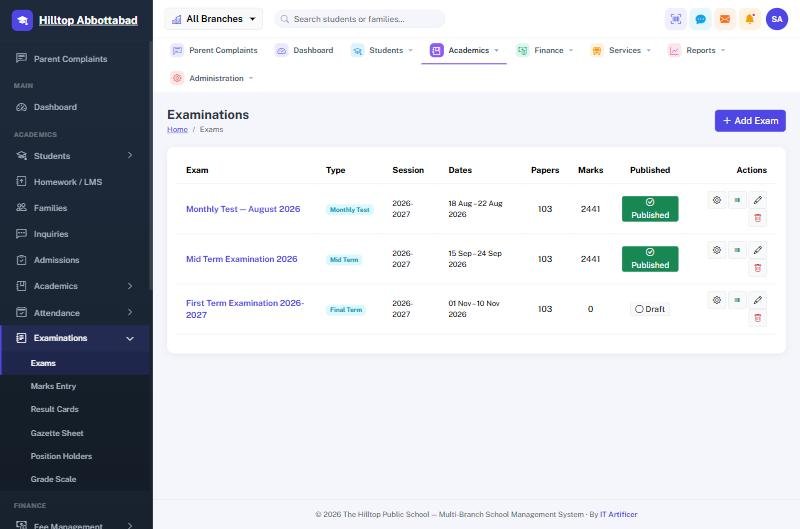
Step 1: Set up your exam structure once
- Exams — first term, mid-term, final, monthly tests.
- Subjects per class with total and passing marks, including theory and practical parts.
- Grade scale — your own percentage bands for A+, A, B and so on, and GPA points if you use them.
Once defined, the structure is reused every term.
Step 2: Teachers enter marks
Each teacher enters marks only for their own subjects and sections — from a computer or the staff app. The system rejects marks above the total and flags absent students, so common typing mistakes are caught on the spot.
Step 3: The system calculates everything
- Totals and percentages
- Grades and GPA based on your scale
- Pass/fail by subject and overall
- Class and section positions, with ties handled consistently
No calculator, no formula errors, no arguments about whether the second position was worked out correctly.
Step 4: Print result cards and gazettes
- Result cards with school logo, student photo, subject-wise marks, grades, attendance and remarks.
- Gazette sheets showing the whole class on one page for the principal.
- Position-holder lists for prize distribution and notice boards.
Step 5: Publish to the parent app
With one click, results appear in the parent app. Parents see marks the same evening, and you can hold results for families with outstanding fees if that is your policy.
Beyond the report card
Because every term's marks are stored, you can see a student's progress across the year, compare sections, and spot subjects where a whole class is struggling. We explore this in improving student progress reports. For matric and intermediate classes, see BISE result management.
Frequently asked questions
Can we use our own result card design?
Yes. Your logo, colours and fields are used on the card; ask during the demo about specific layouts.
Does it handle different grading for junior and senior classes?
Yes. Grade scales can differ between classes, so a primary section can use grades while senior classes use percentages and GPA.
See results calculated from real marks — book a free demo or read the exams documentation.
Run your school the smart way
Book a free demo of School Smart ERP for your school or college.
Request a Free Demo