
3. The dashboard
The first screen after signing in answers the questions a principal asks before anything else: what came in today, what is owed, who is here.
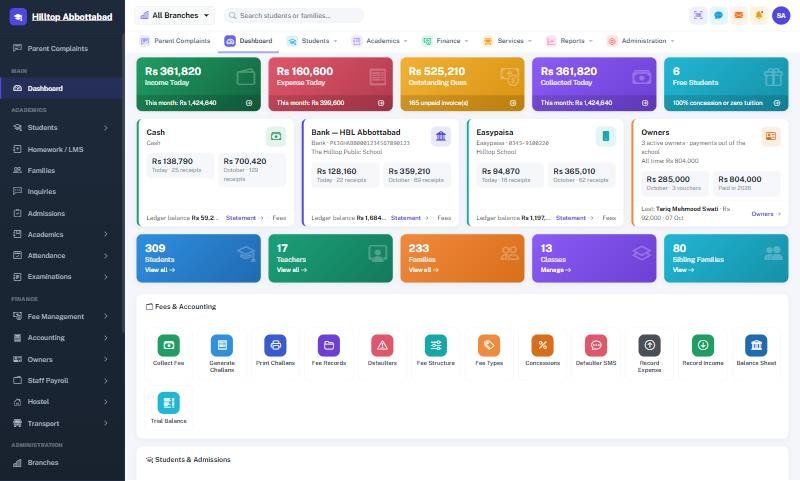
The coloured tiles across the top cover income, expense, outstanding dues, collection and the count of students on full concession. Under them sits one card per account — cash in hand, each bank account, each mobile wallet — showing today's receipts and the month's, with a link straight to that account's statement.
Every tile is a door. Clicking Outstanding Dues opens the defaulters list; clicking Students opens the student register. Lower down the page are quick actions for the things an office does many times a day: collect a fee, generate challans, print challans, mark attendance.
Ready to see it live?
Book a free demo of School Smart ERP for your school or college.