
6. Attendance
Marking
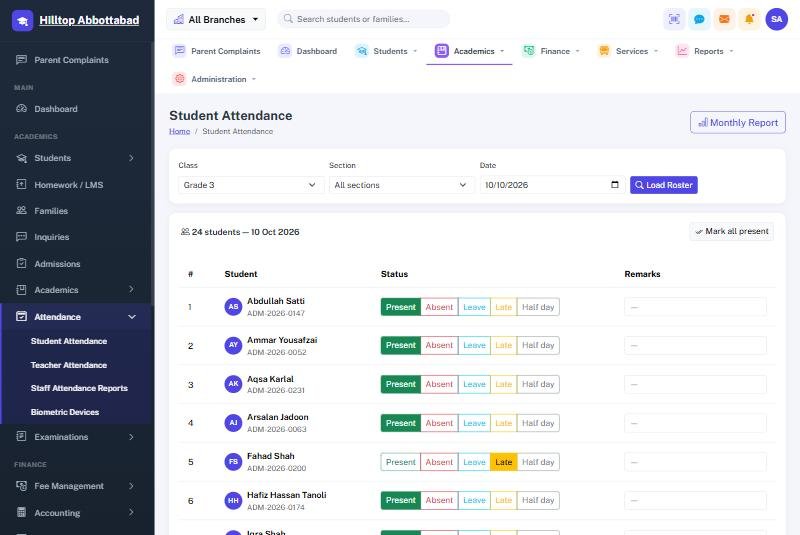
Attendance › Student Attendance, choose the class and the date, and press Load Roster. Each child takes one of five states: present, absent, leave, late or half day. Most days the quickest route is Mark all present and then change the handful who are not. Remarks can be added against any child.
Staff attendance works the same way under Teacher Attendance, and feeds the payroll deduction at month end.
Reports
The Monthly Report gives a class's whole month on one sheet, ready to print. Staff Attendance Reports covers the staff side with five views — a daily sheet, a register, a summary, a late-arrivals list and one person's record — each printable and exportable.
Once the register is marked, the SMS to absentees' parents can go out on its own at a set time each morning. Nobody has to remember. See SMS & notices.
Ready to see it live?
Book a free demo of School Smart ERP for your school or college.