
11. Working offline
A school on a weak line should not have to turn parents away from the fee counter. The Offline Fee Counter is a small till that runs on a PC in the office and keeps taking fees while the internet is down.
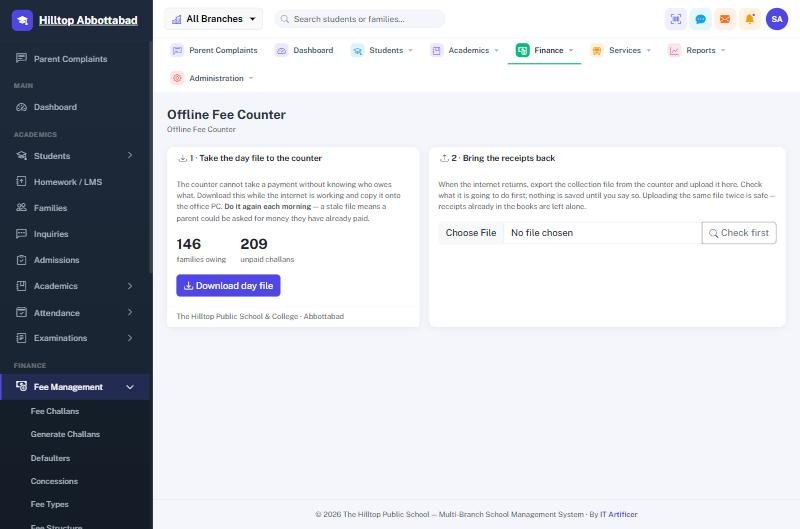
What it does, and what it does not
It takes payments and prints receipts. Nothing else. Attendance, marks and admissions wait for the main system and are entered afterwards. That is a deliberate limit: fee collection is the one thing that cannot wait, because a parent is standing at the window with cash in hand.
Setting it up, once
- Install XAMPP on an office PC that stays switched on during school hours, and copy the
offline-counterfolder into it. - Give that PC a fixed address on the school network so it never moves.
- Open it in a browser, load the first day file, and set a passcode.
- Bookmark it on every office machine, labelled plainly — School Fees — offline.
Every morning
From Fee Management › Offline Fee Counter, press Download day file and load it on the counter. The file carries every unpaid challan with its balance, the fee heads behind it, the payment methods and the school's own branding, so the slip the counter prints is the slip parents already know.
The counter can only see challans that were unpaid when the day file was made. A file several days old risks a parent being asked for money they have already paid. The counter shows the file's age and warns once it passes a day.
When the line goes down
Nothing to switch on. Open the bookmark, find the challan by number, admission number,
family code, name or mobile, take the money and print. Receipts issued offline carry the
counter's own code — RC-L1-2026-00001 — so they can never collide with a
number the main system issues at the same time.
When the line comes back
- On the counter, Send to school › Download collection file.
- On the main system, upload it and press Check first. Nothing is saved yet.
- Read what it is going to do, then confirm. The receipts post to the ledger dated when they were actually taken.
- Load a fresh day file on the counter so it matches the school again.
Uploading twice is safe. Every receipt carries its own identifier, so a second upload of the same file changes nothing — which matters, because re-uploading is the first thing anyone does when an upload looks like it failed.
An edited file is refused. The collection file is checksummed; if a figure has been altered since the counter wrote it, the system will not accept it.
Overpayments are shown, not swallowed. If a challan was settled on the main system while the counter was offline, that receipt is listed for the office to look at rather than posted quietly.
Do not run two counters from the same day file. Both would issue the same receipt numbers. One office PC, one till.
Ready to see it live?
Book a free demo of School Smart ERP for your school or college.